| flake.lock | ||
| flake.nix | ||
| gis | ||
| gis_completion.bash | ||
| install.bash | ||
| install.zsh | ||
| README.org | ||
| screenshot.png | ||


gis
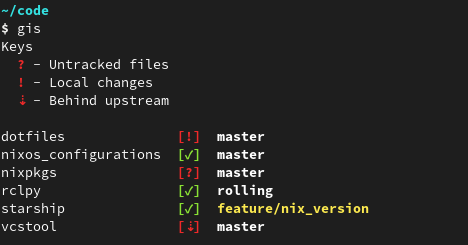
gis is a Bash script which shows a status summary of multiple Git repositories.
It was inspired by wstool, vcstool and the default Starship prompt.
Usage
  Usage: gis [COMMANDS] [OPTIONS]

  Show a status summary of all Git repositories which are found recursively in
  current work directory. If the colon-separated environment variable $GIS_PATH
  is set, the declared directories will be used instead.

  COMMANDS
    fetch  Execute 'git fetch --prune --all' for all found repositories
    pull   Execute 'git pull' for all found repositories which are behind upstream

  OPTIONS
    -p, --path  PATH  Use PATH for searching Git repositories
    -h, --help        Show this help message and exit
Installation
Manual
Place the gis script in your $PATH.
To use the autocompletion feature source the gis_completion.bash script.
On ZSH additionally the compinit and bashcompinit modules must be loaded before sourcing the completion script:
  autoload -U +X compinit && compinit
  autoload -U +X bashcompinit && bashcompinit
Scripts
Installation scripts for Bash (install.bash) and ZSH (install.zsh) are provided which will link the two files to ~/.local/{bin/gis,share/bash-completion/completions/gis} and add the corresponding entries to ~/.bashrc or ~/.zshrc.
Further updates of gis require just git pull.
Nix Flake
This repository is also a Nix Flake.
gis is provided as package under github:Deleh/gis#gis.
Syntax
  $ - Dirty stash
  ? - Untracked files
  ! - Local changes
  + - Staged changes
  - - File removed
  = - Both modified
  ⇕ - Diverged from upstream
  ⇡ - Ahead upstream
  ⇣ - Behind upstream
  ✗ - Upstream gone
Branches which don't have the same name as the origin/HEAD reference are highlighted in yellow.
You can manually check on which branch you working tree is on by executing the following command:
git symbolic-ref refs/remotes/origin/HEAD
Note, that the reference gets only set when the repository is initially cloned and doesn't update with git fetch.
It can be updated manually like this:
git remote set-head origin -a
Or set it manually to any branch with:
git remote set-head origin <branch_name>